From CAD to a clear product story
CAD to Blender, 3ds Max, and glTF
Bring engineering models into your visualization workflow with control over mesh quality. If you used Power Translators to bring CAD into 3ds Max, VIZ carries that CAD-import and tessellation workflow into a standalone application.
Start your free 30-day VIZ trialNo credit card required. Activate in the application.
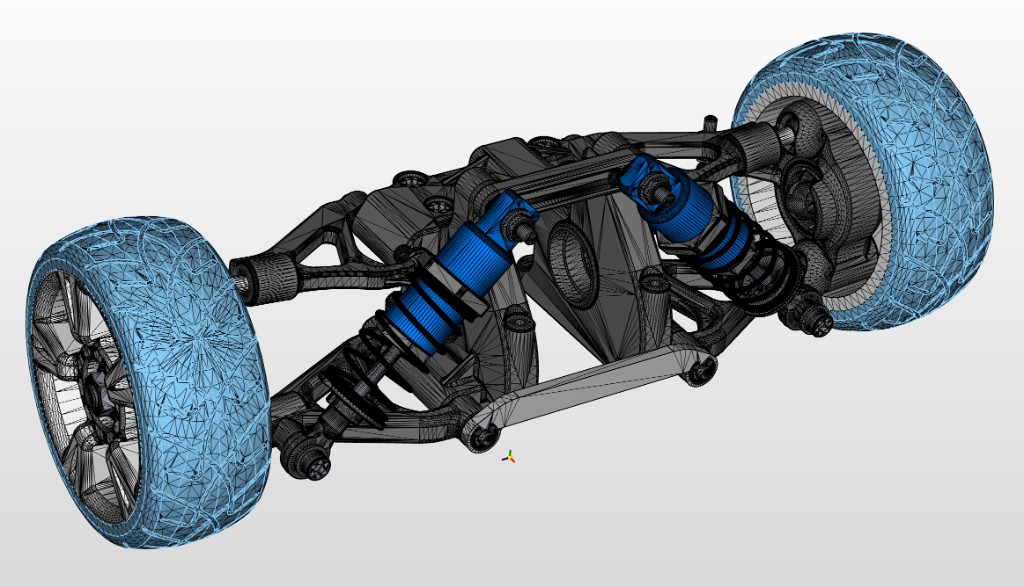
From model to result
-
01
Import engineering data
Start with a STEP model or supported SOLIDWORKS data. Inspect the assembly before generating the mesh for your destination application.
-
02
Tune tessellation
Adjust maximum angle, chord height, and edge length. Inspect curved silhouettes and polygon density; use finer settings for close-up renders and lighter meshes for interactive display.
-
03
Export the mesh
Export OBJ or glTF for a compatible import workflow in Blender, 3ds Max, or another visualization tool. Check scale, orientation, and materials in the destination application.
VIZ exports polygon meshes for these workflows. It does not require Blender or 3ds Max to prepare the mesh; using a destination application may require its own license. Material transfer depends on the format and importer.
CAD import and tessellation in VIZ
Importing and tessellating an assembly on a 24-core Ultra 9 system. Processing time varies with the model and hardware.
Try it with your own model
Download VIZ, open the licensing dialog, select Power Surfacing Viz, and verify your email to start a 30-day evaluation. No automatic purchase follows the trial.